How to pay your IRS tax outside of the USA with no US bank account
If you need to pay your tax to Uncle Sam and live outside of the US, I recommend that you use the Wise app.
During the opening of my Wise account, I found out that I needed to upload the required ID documents a few times before they were accepted.
My ID is a book and the app wanted me to scan the front and back which it rejected. Also I was told that my proof of address had a problem. I think it was because my Bank statement proof of address abbreviates Lane to “LN”. Your proof of address must exactly match your address in Wise.
After a couple of retries to upload my documents, it seemed that a Human intervened and them.
The IRS only deals with USD currency, so make sure that you only use the USD currency option in Wise.
You will need to send USD 300 to your Wise account before you can start using it.
Once you see the USD 300 in your account you are good to go and you can put this starting USD 300 payment to use.
You can then set up an incoming transfer to your Wise account entering the amount and currency (USD) that you want to use to make the transfer to Wise. Take a photo of this information or write it down.
Wise will then tell you if there is a Wise connected bank in the country that you live in. If you have a local Wise connected bank, that is good as the you do a local transfer rather than having to deal with International payments using a SWIFT code.
Wise will then tell you the bank account information for Wise’s bank account to use.
Next go to your bank account and use the information provided by Wise to pay the USD 300.
Be careful if you have chosen to pay the USD 300 in your local currency. Some overseas bank allow to you have a USD account but unless Wise knows you are paying in USD, the Wise bank will reject your payment and bounce it back to your home account. This happened to me!
After you have made the payment you must go back into your Wise account and click the button at the bottom that you have made the payment.
You should see the USD 300 appear in your Wise account quickly.
In your Wise account you can click on the USD icon in order to get the account information that you need to pay your IRS tax. These items are your Account Number; the Routing Number and the address.
Write these numbers down or take a screenshot as you’ll need them later when you use the IRS “Direct Payment” webpage to pay your tax.
When you go to the first page you will need to fill in information the tax return that you want to pay.
Next page asks you for your address.
Make sure that the address that you are using is the same as on a previous IRS tax return.
Also the website doesn’t like commas so remove commas in your address.
Next page is where you enter the amount that you want to pay the IRS, your Wise account and routing numbers.
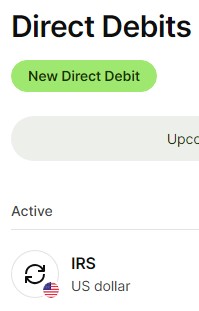
If all goes according to plan you’ll see an icon for the IRS appear in the “Debit Debits” menu item in your Wise account. Using the payment method sets up a Debit order with Wise so that the IRS can deduct your nominated tax amount from your Wise account.
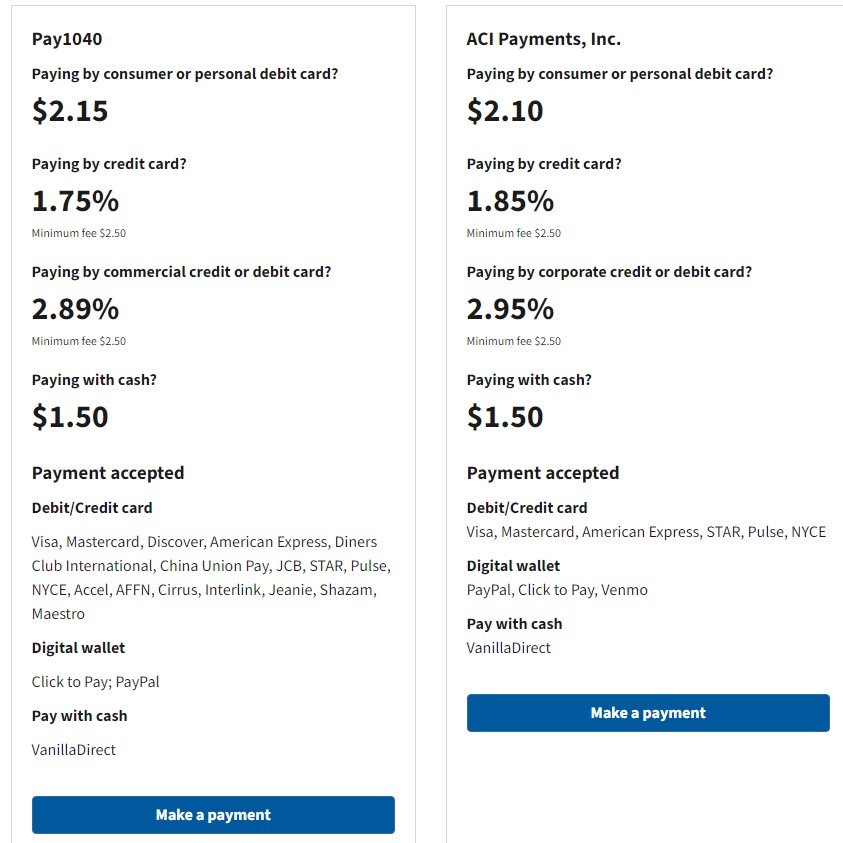
If you have a PayPal account or an overseas Credit/ Debit card, you can also pay the IRS through a couple of third party websites (Pay1040 and ACI) but their fees are much higher than Wise.
Good luck!